
Dynamic Island for Windows 11
Updated 13 November 2026Windows 11 has no Dynamic Island of its own. Smart Notch adds one: a small island at the top of your screen that shows what is playing, how your PC is doing and what needs your attention, and opens into a full panel when you hover over it.
What the island does on Windows 11
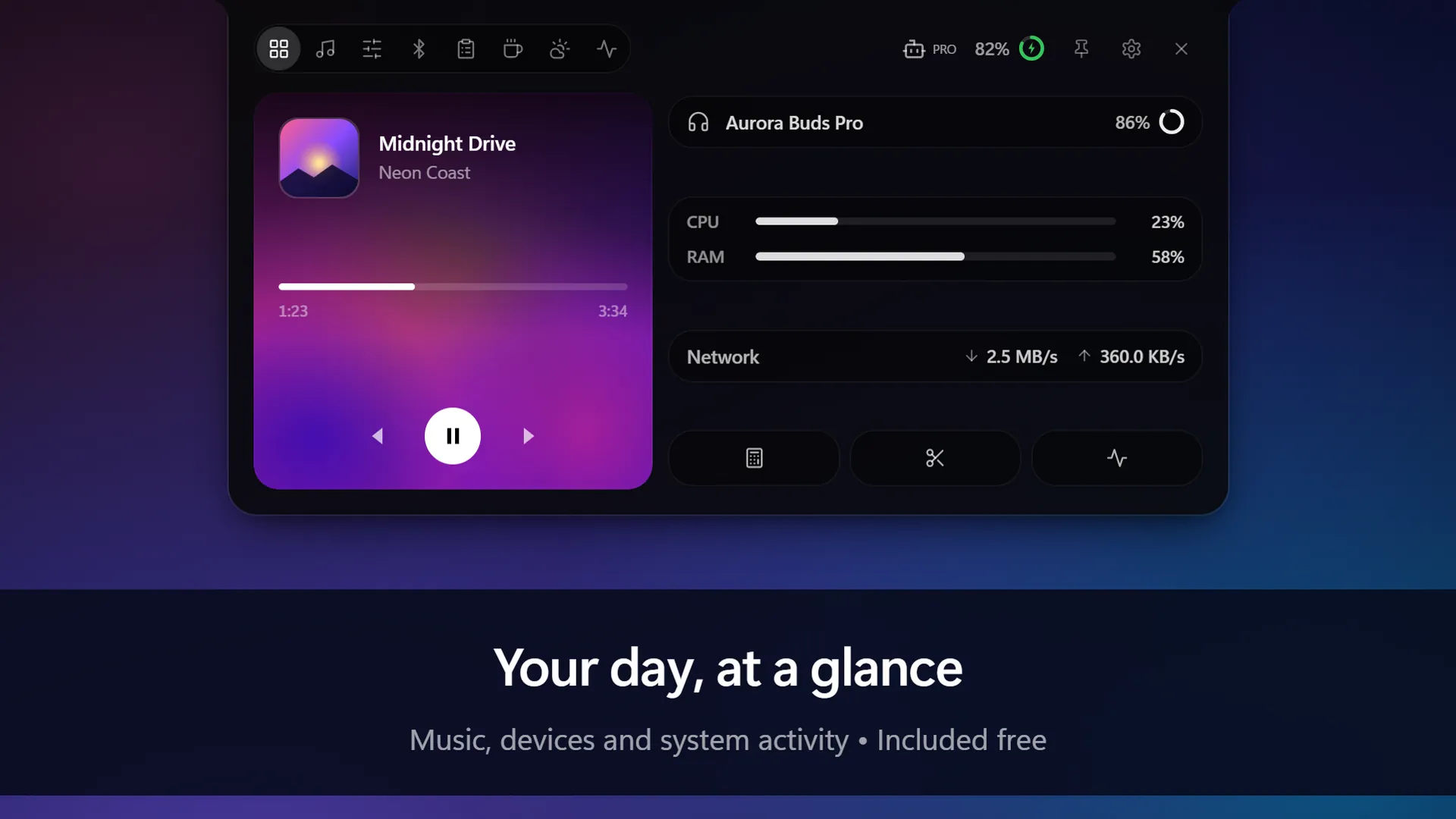
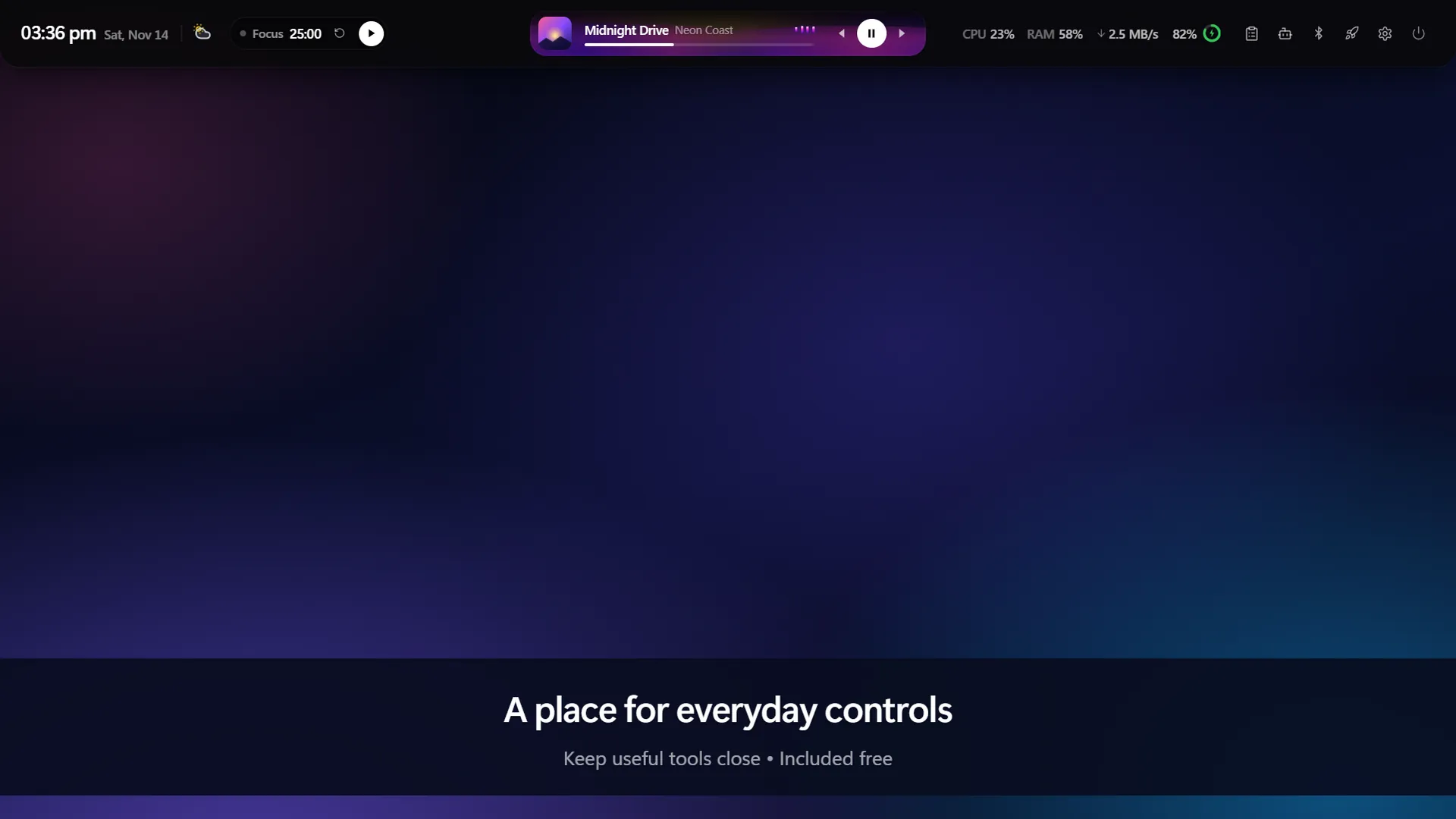
When it is closed, Smart Notch is a small shape at the edge of your screen. It shows the song that is playing, a running timer, or a live reading such as battery, CPU or memory. Hover over it and it opens into a dashboard with:
- Media controls with artwork for any app that uses Windows media controls, such as Spotify, Apple Music or YouTube in a browser.
- System stats: CPU, memory, network speed, storage, battery and uptime.
- Everyday controls: volume, brightness, Bluetooth devices, weather, and shortcuts to Calculator, Snipping Tool and Task Manager.
- A focus timer with work and break sessions, a task list and a stopwatch.
- Privacy indicators: green and orange dots while an app is using your camera or microphone.
All of that is free. The feature guide covers each part in detail, and Free vs Pro lists what the optional upgrade adds.
Three styles: notch, pill or bar
The Dynamic Island on iPhone is a floating pill. On a wide Windows 11 desktop you get a choice:
- Notch: attached to the edge of the screen, like the cut-out on a MacBook display.
- Pill: a floating island with a gap around it, closest to the iPhone look.
- Bar: a full-width strip for people who want more information visible all the time.
How it fits the Windows 11 desktop
- It stays out of the way of the taskbar. The Windows 11 taskbar lives at the bottom of the screen and the island sits at the top by default. You can also put it on the left or right edge, on any monitor.
- It steps aside for full-screen apps. Smart Notch hides while a full-screen game or video covers the screen and returns when you leave full screen.
- You can shrink it. Double-click an empty spot in the open island and it becomes a slim line at the edge of the screen. Double-click the line to bring it back.
- It starts with Windows. If you would prefer to start it yourself, turn it off in Settings → Apps → Startup.
- Glass effects look their best here. A few of the blur and glass effects are designed around Windows 11.
Set it up in a minute
- Open the Smart Notch page in Microsoft Store and select Get.
- Open Smart Notch. The island appears at the top centre of your main display.
- Hover over it to open the dashboard, then open Settings from the island to pick your style, position and theme.
The install guide has the full steps, including installing with winget, updating and uninstalling.
Common questions
Does Smart Notch need a laptop with a notch?
No. It draws its own island on any display, including external monitors.
Does it cover my windows?
The closed island is small and sits above your apps at the screen edge. If it is in the way of something, move it to a side edge or double-click it to shrink it to a line.
Is it free on Windows 11?
Yes. The essentials are free, and Pro is an optional one-time upgrade. See what is free and what is Pro.
I am still on Windows 10. Will it work?
Yes, on version 2004 or later. See Dynamic Island for Windows 10.
Get Smart Notch from Microsoft Store See it in action
Smart Notch is an independent app inspired by the Dynamic Island on iPhone. It is not affiliated with Apple or Microsoft.